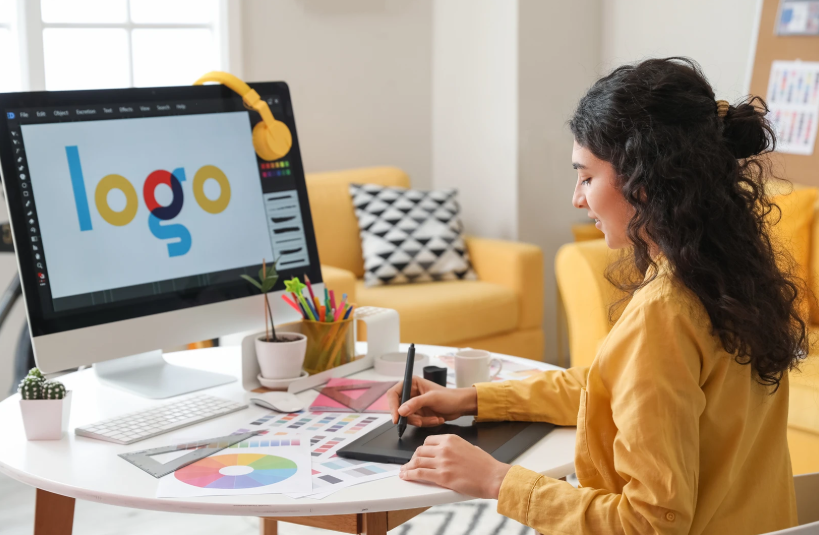
Most people now need visuals—social posts, pitch decks, posters, and event graphics—but don’t have time to learn pro software or hire a designer. That gap leaves a lot of small businesses, creators, and community projects stuck with bland, off-brand visuals that quietly hurt their credibility. The good news is that a new generation of online design tools is built specifically for non-designers, with templates, AI helpers, and built-in brand controls that keep you from “messing it up.” When you choose the right mix of tools and workflows, you can create professional-looking graphics in minutes, not days, and stay focused on the work you actually care about.
1. Clarify What You Really Need from a Design Tool
Before you sign up for every shiny platform, get very clear on what you need your designs to do for you day to day. Most non-designers don’t need every feature under the sun; they need speed, guardrails, and a way to stay on brand without thinking too hard. Start by listing the formats you use most often, such as social posts, simple PDFs, slide decks, or basic print pieces. Then rate how comfortable you are with layout, color, and typography so you pick a tool that matches your current skill level.
- Make a simple “must-have” list: common formats, collaboration needs, and whether you need web, mobile, or both.
- Decide if you need AI help for layout and content or if you prefer starting from traditional templates.
2. PicMonkey: Photo-Forward Design for Social-First Brands
If your visuals lean heavily on photos—product shots, portraits, or lifestyle images—PicMonkey gives you a friendly balance between photo editing and layout tools. It’s designed for people without formal training who still want polished images, offering easy cropping, retouching, filters, overlays, and text controls in one place. The template library covers common needs like social graphics, headers, and simple promotional pieces, so you’re rarely starting from a blank canvas. For small businesses and solo creators, that combination of “better photos + simple design” often has a bigger impact than complex, multi-layered layouts.
- Use PicMonkey first to clean and brighten your photos so everything you design starts with strong source images.
- Build a small set of reusable layouts for recurring series—such as testimonials, product highlights, or quotes—to keep your grid cohesive.
3. Visme: Presentation and Visual Document Power for Non-Designers
When you need more than a simple image—think pitch decks, one-pagers, reports, or infographics—Visme gives non-designers a way to build complex visuals without drowning in options. It focuses on presentations, interactive infographics, and branded documents, with templates and widgets that handle charts, timelines, and process diagrams for you. The editor is drag-and-drop, but the structure of templates keeps your layouts coherent, which is crucial when you’re telling a story with data. Teams can also store assets and templates centrally, which keeps multiple people from reinventing the wheel every time someone needs a deck.
- Start from a presentation or document template instead of a blank file, then swap content while keeping structure intact.
- Use built-in charts and data widgets so numbers are visual and scannable, rather than pasted screenshots from spreadsheets.
4. Snappa: Fast Social Graphics for Entrepreneurs and Small Teams
Snappa is built for speed, aimed at marketers and entrepreneurs who need a lot of digital graphics and have very little time. The platform lives entirely in the browser and focuses on ready-sized templates for social media, ads, blog images, and headers so you never guess dimensions. Its main strength is that you can go from idea to finished image in a few minutes, using professionally balanced layouts and stock photos built into the editor. For non-designers, this makes it easier to publish consistently without sacrificing basic visual quality.
- Use Snappa as your “daily driver” for quick campaign graphics while keeping deeper design work in other tools.
- Lean on pre-sized templates for platforms you use most so you avoid awkward crops or cut-off text.
5. VistaCreate: Template-Rich Design for Multichannel Content
VistaCreate (formerly Crello) is another template-heavy design platform made to help non-designers produce everything from social graphics and simple videos to print-ready designs. It offers thousands of layouts across formats and includes an AI image generator, giving you fresh visuals without needing a stock subscription. For users who feel overwhelmed by blank pages, VistaCreate’s category-based templates make it easy to search by purpose or industry and then tweak the design instead of starting from scratch. This is especially helpful if you manage multiple brands or side projects and need different looks without learning advanced tools.
- Favorite 20–30 templates that match each brand you manage so you can build new graphics quickly within a consistent style.
- Experiment with light animation or video templates to make your posts stand out in fast-moving feeds without heavy editing skills.
See also: How Artificial Intelligence Is Transforming the Tech Industry
FAQ: Flyer Design Tips for Non-Designers
Flyers are still one of the most approachable design projects for non-designers, and with the right online tools you can create something clear, attractive, and print-ready in very little time. Read on to learn more.
How do I choose the right flyer layout if I’ve never designed before?
Start by picking a template that matches your goal (promotion, event, or announcement), then keep the structure mostly intact while swapping in your own headline, key details, and image so you benefit from professionally balanced spacing and hierarchy.
Is there a simple way to design and print a flyer without hiring a designer or a print shop?
You can use a platform like Adobe Express and its flyer maker free printable tool, which lets you customize a template, download a high-resolution file for home or local printing, or order professionally printed copies directly from the same interface.
What are some beginner-friendly flyer tools besides Adobe Express?
If you want additional options, Visme offers flyer templates with drag-and-drop editing and brand controls, while PicMonkey provides easy-to-edit flyer layouts that are especially helpful if you want to combine strong photos with bold typography.
How can I make sure my flyer is readable from a distance?
Choose one clear headline in a large, bold font, limit yourself to two or three fonts total, keep body text short, and make sure there is strong contrast between text and background so key information stands out even when someone glances at it quickly.
What basic checks should I run before downloading or printing my flyer?
Before finalizing, confirm that dates, times, locations, and contact info are correct, ensure images look sharp at print size, check that nothing important sits too close to the edges, and export in a recommended format (often PDF for print or PNG/JPG for digital sharing) based on your chosen tool’s guidance.
Non-designers no longer have to choose between bland, off-brand visuals and the cost of professional design for every single asset. By combining a few focused tools, you can cover nearly every common need with confidence. Overall goal: build a small, dependable stack of online design tools that lets any non-designer create clear, on-brand visuals quickly, so design becomes a multiplier for your work—not a bottleneck.